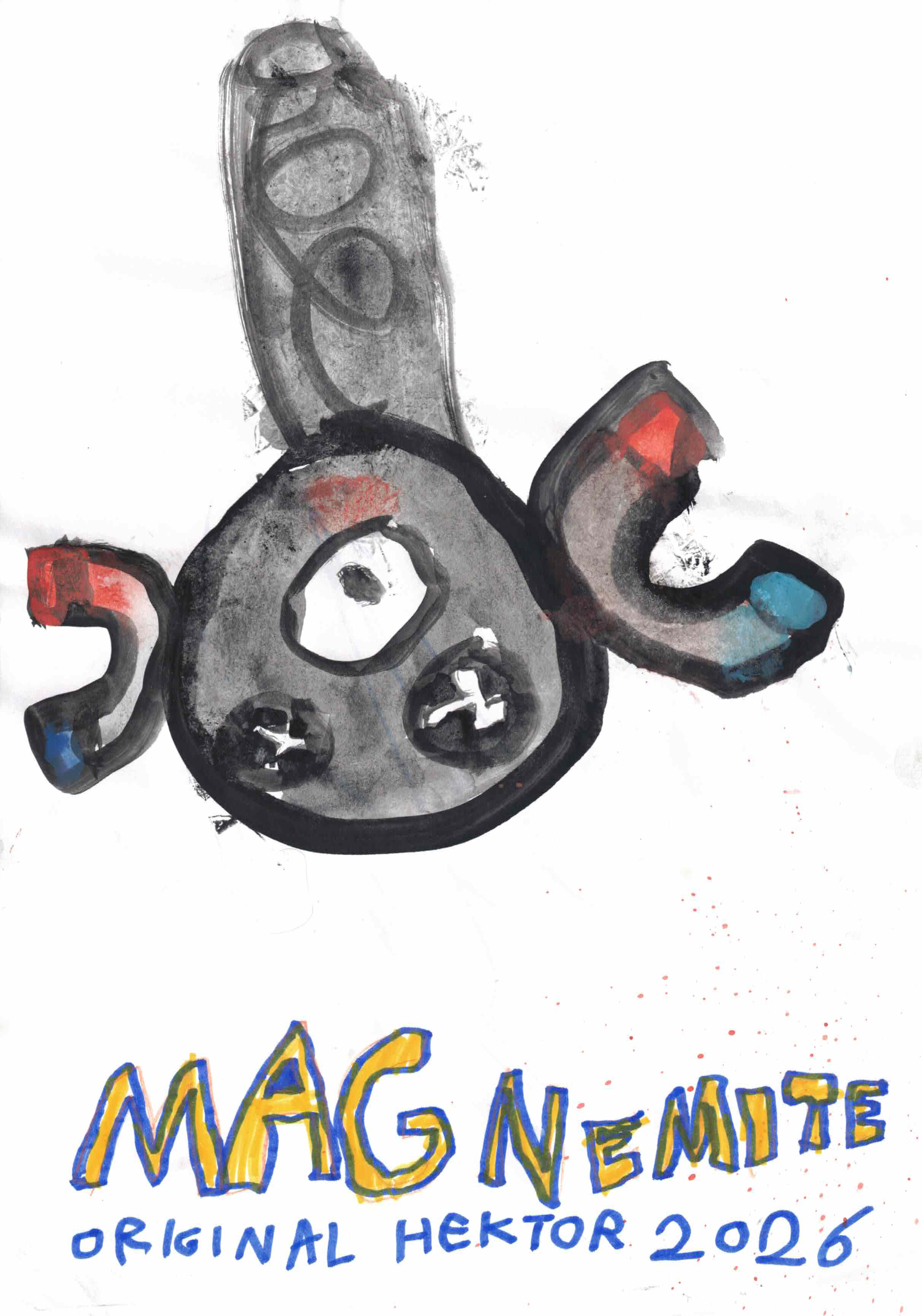
MAGNEMITE
Add a caption for this picture.
nsite-clay
Koukněte na moje výtvory. Napiště mi, jak se Vám líbí a dejte like.
Add a caption for this picture.
Add a caption for this picture.
No comments yet.
Add a caption for this picture.
No comments yet.
Add a caption for this picture.
No comments yet.
Add a caption for this picture.
No comments yet.
Add a caption for this picture.
No comments yet.
Comments stay open under every picture, so anyone reading the page can leave a note on the card it belongs to. The like button sits next to the comments, and the number of likes shows inside the Pokeball.
Adding pictures needs a sign in with your ncrypt nsec. After that, the add picture dialog takes a title, a caption and one picture file, and the crop you pick sets the shape of the frame.
Everything this page shows is an event on Nostr. The pictures, the comments and the likes are written to the relays this page declares for itself (wss://nos.lol, wss://relay.primal.net, wss://nostr.mom and wss://relay.nsite.lol), and readers pull them back from the same set.
Signing in uses a Nostr key: a browser signer (NIP-07), a remote signer (NIP-46) or a pasted ncrypt nsec. The key signs the events you publish and never touches the picture files.
A picture comes in two parts. The file sits on a Blossom server, and the entry is a picture event (kind 20) that points at the file, carries the name and the description, and lists the relays it was sent to. Comments are reply notes tagged to that event, and a Pokeball tap is a reaction (kind 7) whose count the card shows.
| Part | What it does |
|---|---|
| Picture | The photograph itself, cropped to the shape the entry uses. |
| Title | One short line above the caption, shown on the card. |
| Caption | A sentence or two about the picture, editable at any time. |
| Likes | A counter in the shape of a Pokeball, starting at zero. |
| Comments | An open section under the picture where notes collect. |
| Part | Nostr home |
|---|---|
| Key | A Nostr key, used through a browser signer (NIP-07), a remote signer (NIP-46) or a pasted ncrypt nsec. |
| Picture file | A file on a Blossom server, uploaded with the BUD-02 upload call and referenced by URL. |
| Picture entry | A picture event, kind 20, holding the name, the description, the crop and the file URL. |
| Comments and likes | Reply notes tagged to the picture event, and reaction events, kind 7. |
Write the text for this block here.
Add a caption for this picture.
No comments yet.
Comment text.
Add a caption for this picture.
No comments yet.
add #edit to the URL to edit this page
Comments
No comments yet.
Add a comment